![pp-Logo-transparent white.png]](https://support.pupilprogress.com/hs-fs/hubfs/pp-Logo-transparent%20white.png?height=40&name=pp-Logo-transparent%20white.png)
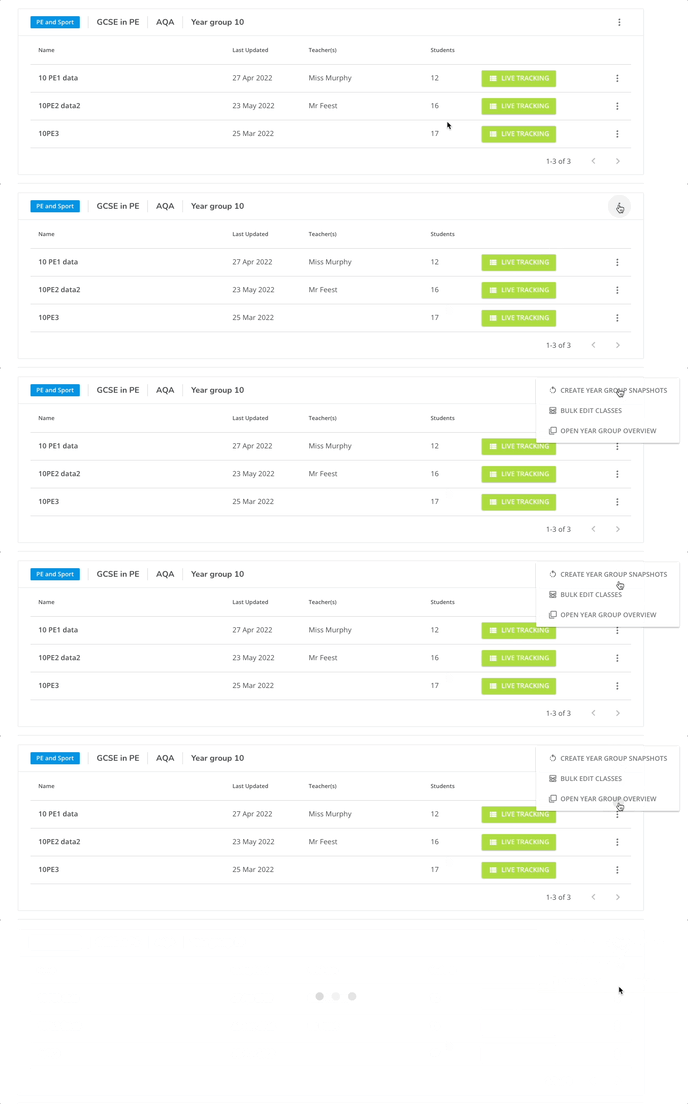
The system automatically generates year groups for each qualification, so that you can access a general year group overview with just one click.
This will help you visualise multiple things:
-
- Spot patterns across the whole year
- Observe progress between classes
- See average grades across the year group
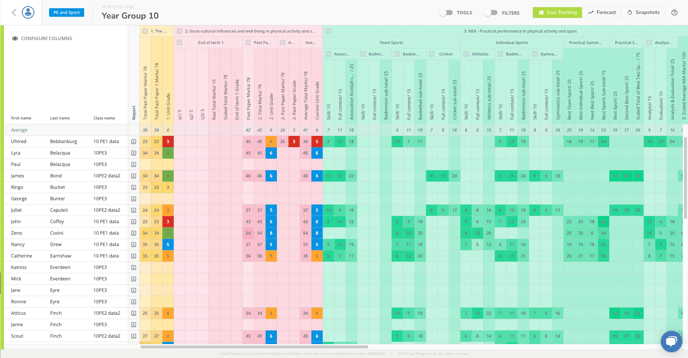
For instance, the screenshot below is an overview of the students in Year 10 doing GCSE in PE. Students in here are arranged alphabetically based on their surnames, so it's easy to locate them.
By clicking on "Tools" from the top menu, you'll be able to either Download the Year Group Overview as an Excel file or use the Move Students functionality if your class is not synchronised. You can find further guidance on the latter in this article:
You can also use the Configure Columns button on the top-left corner to have the tracker display any students' attributes that you deem relevant in your view.
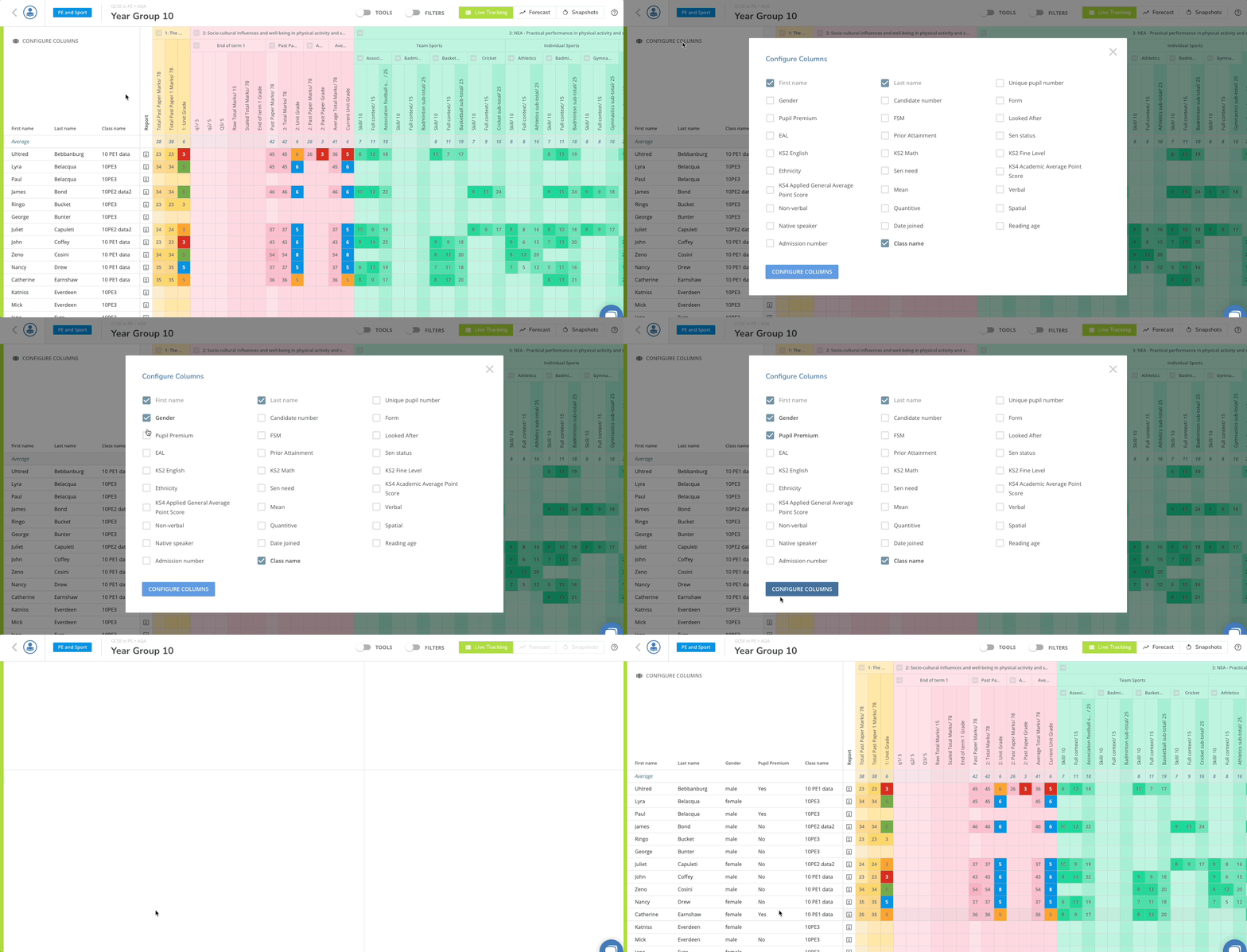
Just tick the attributes you want displayed and then save your selection by clicking on Configure Columns. Your view will then be updated to include the students' background information you selected.