![pp-Logo-transparent white.png]](https://support.pupilprogress.com/hs-fs/hubfs/pp-Logo-transparent%20white.png?height=40&name=pp-Logo-transparent%20white.png)
Walkthrough
Watch the video to see all the features of the Grades Summary and how you can use it to:
- Change the grade types
- View historic data
- Download the information in to an Excel sheet
- Filter the students being displayed
Opening the Grades Summary
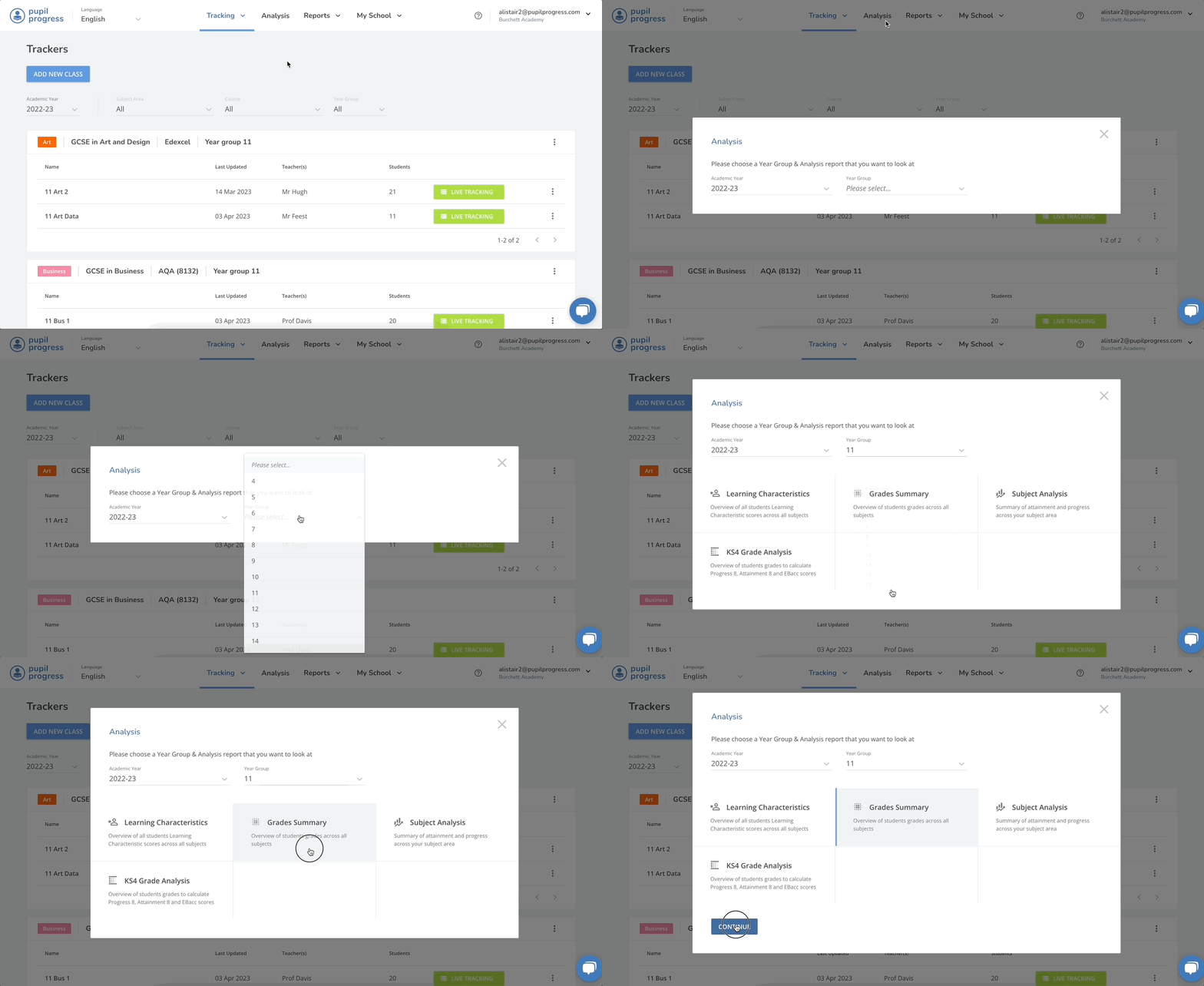
Navigate to the Analysis area and select the cohort and Year group you wish to look at. Select the Grades Summary option and click continue.
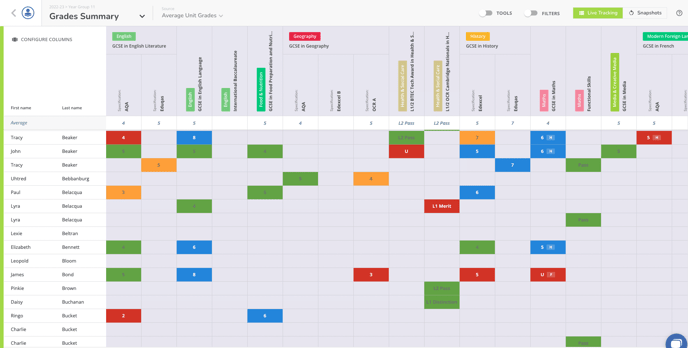
You will be taken to the Grades Summary area which pulls the grades from the summary of every tracker for the selected year group. The colours of the grades indicate how the grade is compared to the student's Minimum Target Grade:
- Blue = Above the Minimum Target Grade
- Green = Same as the Minimum Target Grade
- Yellow = 1 grade below the Minimum Target Grade
- Red = 2 or more grades below the Minimum Target Grade
Changing the Grade Type
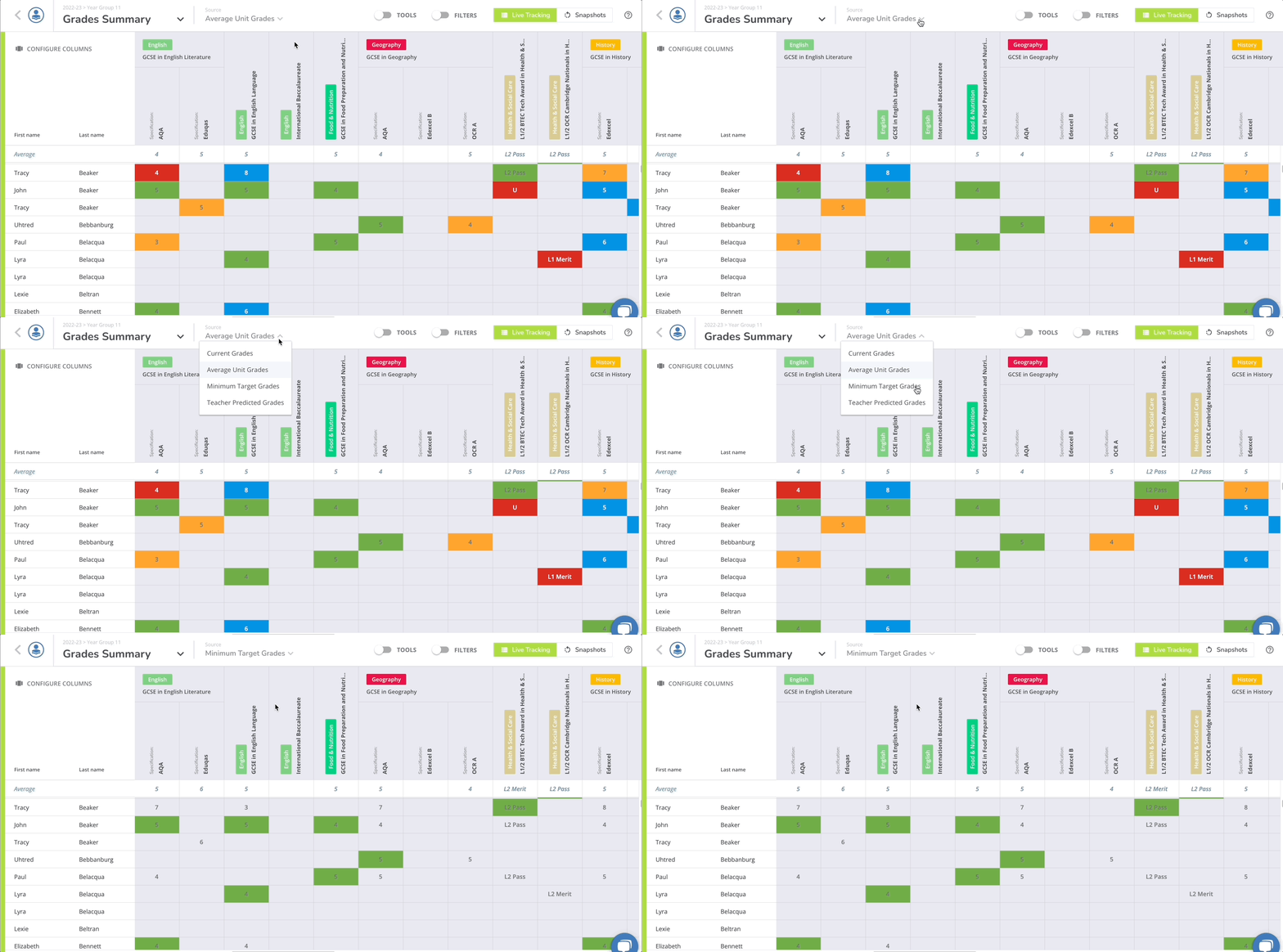
The Grades Summary are will open up showing the Average Unit Grades by default. You can change this to the Current Grades, Teacher Predicted Grades or Minimum Target Grades instead by clicking on the Source dropdown in the menu at the top.
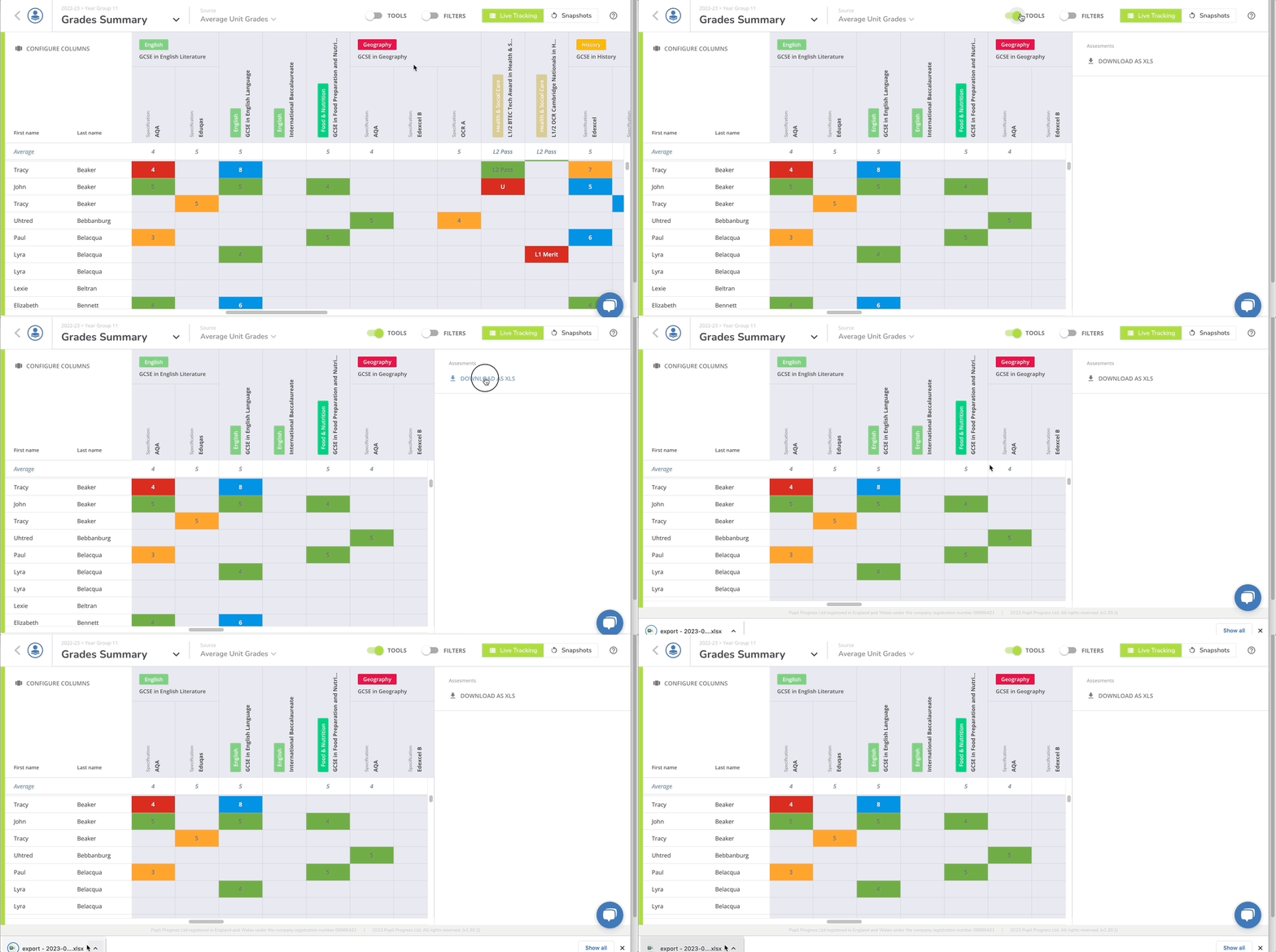
Downloading your data as an Excel File
You can do further analysis or extract the information to use with other software by:
- Clicking the Tools toggle
- Clicking Download as XLS
- Open your file from your downloads folder
Filtering Students
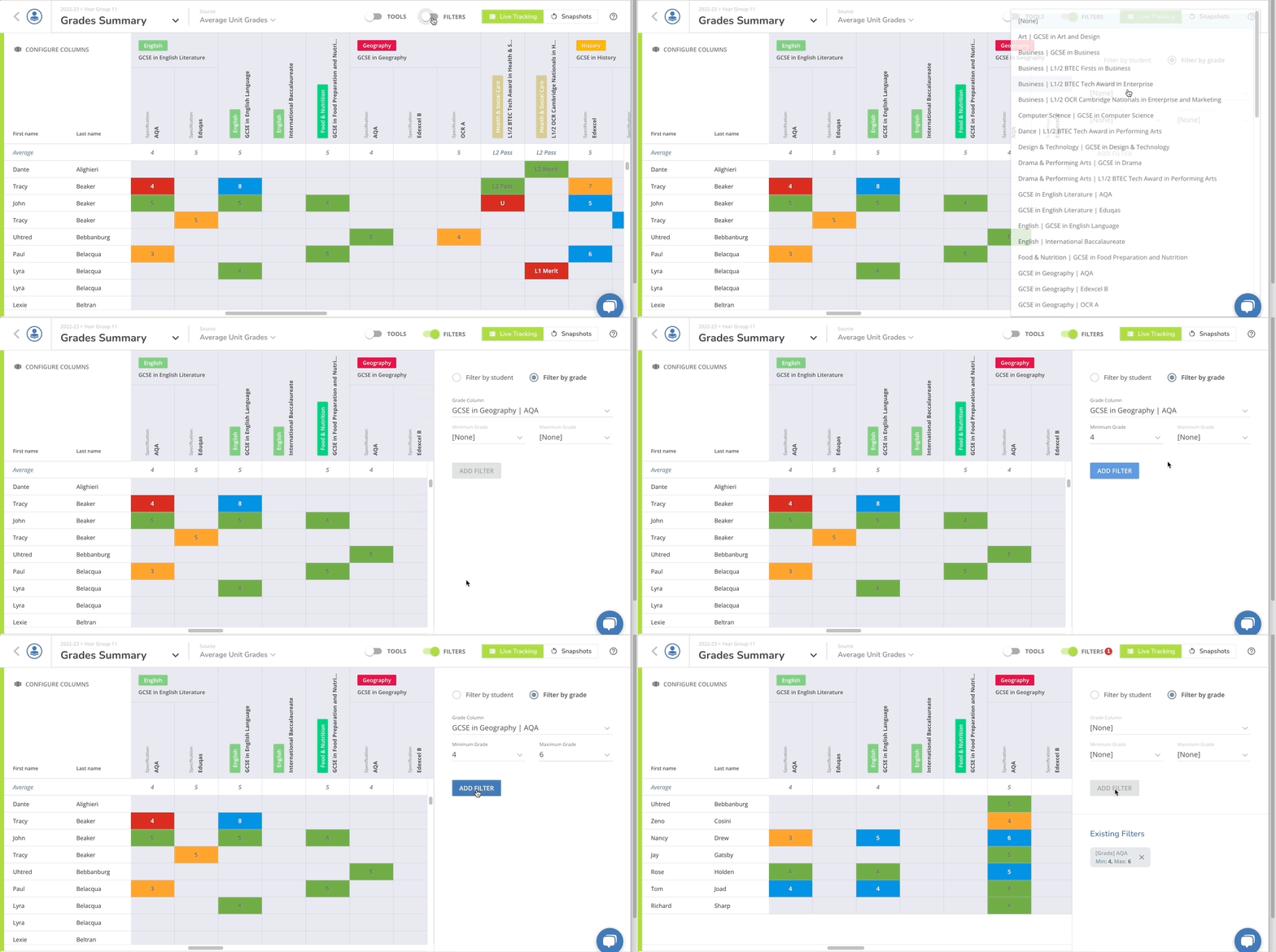
To filter students by the grade they have achieved in a subject or across multiple subjects, or by subcategory data, simply:
- Click Filters
- Click Filter by Students or Filter by Grade, depending on what you're looking to do
- Add a filter rule